How to Use Google Calendar's 'Focus Time' to Protect Your Deep Work
Jan 08, 2026 By Juliana Daniel
Your Most Productive Hours, Guarded by a Digital Bouncer
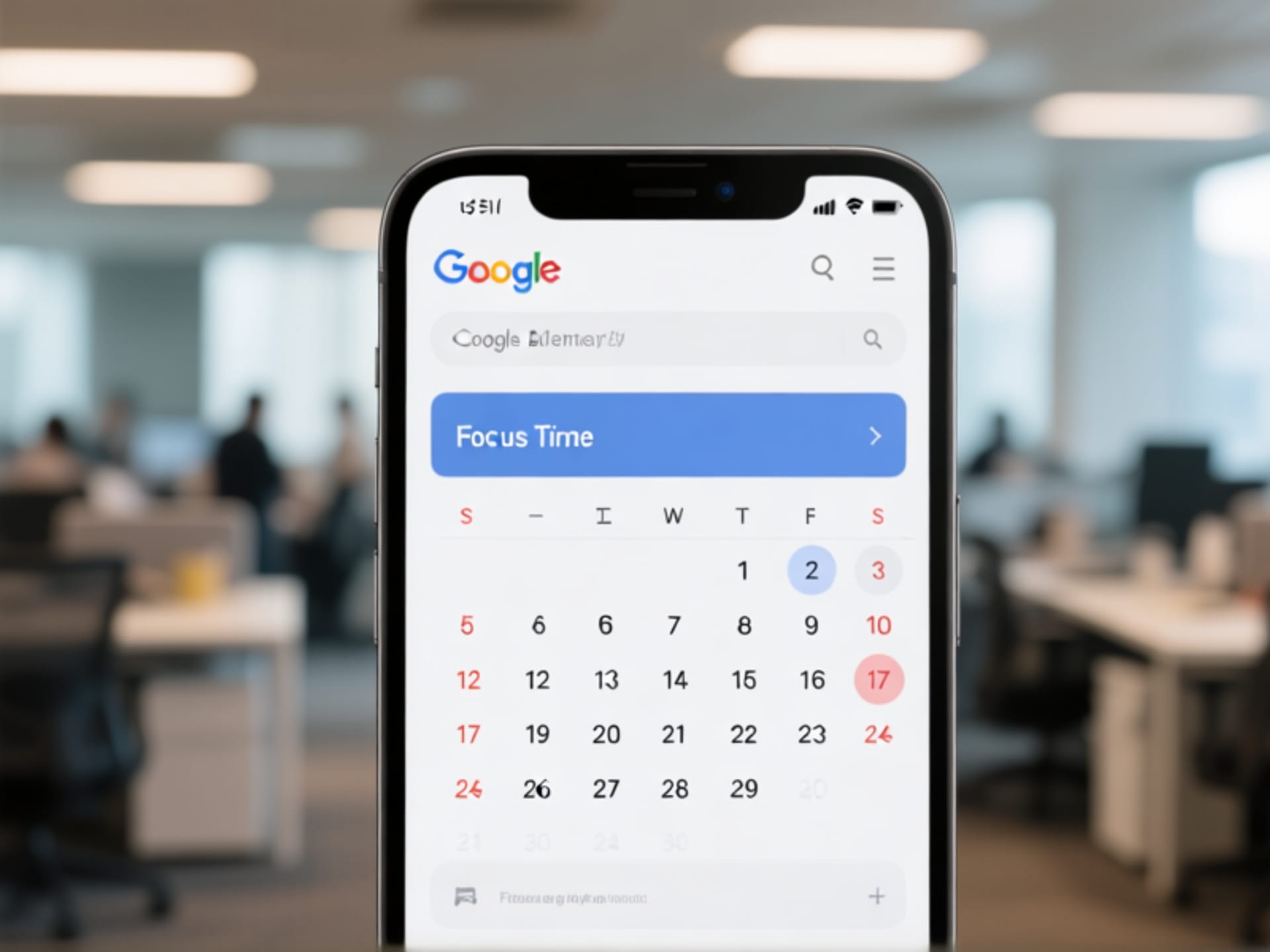
Think about your best work. Not the answering emails, not the meetings. The real, head-down, world-fades-away stuff. Deep work. It's a rare beast in the modern office jungle. The problem isn't finding the time; it's defending it. That's where your Google Calendar's secret weapon comes in. It's called "Focus Time," and it's less of a feature and more of a digital bodyguard for your brain. Set it up, and it'll politely tell the world—and the most distracting parts of your own brain—to take a hike.
Forget "Busy." This Is About Being "Unavailable."

Here's the thing. Blocking time on your calendar with a vague label like "Work" or "Tasks" is a joke. You and everyone else knows you'll cave. "Focus Time" is different. It's Google's official, built-in "Do Not Disturb" sign. When you mark a block as Focus Time, it automatically sets your status to "Declined" on other calendar tools like Meet. It tells your colleagues you're in the zone. More importantly, it tells you that this time is sacred. It changes the label from a suggestion to a commitment.
Setting It Up: A 30-Second Ritual for Sanity
Don't overcomplicate this. Open your Google Calendar. Click to create an event, just like you always do. Give it a real name: "Write Q3 Report Draft" not just "Focus Time." Then, look for the little palette icon or the "Event" settings. You'll see a toggle or a button labeled "Focus time." Click it. Boom. That block of time now has superpowers. Pick a distinct color—maybe a deep blue or a calm green—and make it recurring for your most reliable brainpower hours. That's it. The bouncer is now on duty.
Making It Stick: The Human Rules Behind the Tech
The tool is smart, but you have to be smarter. First, be brutally honest about what you need. Is it two hours on Tuesday morning? Three 90-minute blocks spread through the week? Schedule it. Second, communicate. Let your team know what the "Focus Time" marker means for you. Is it "slack me only if the building is on fire" or "text for urgent issues"? Set the expectation. Finally, respect your own rule. When that block hits, close the email tab. Mute the team chat. The calendar did its part. Now you do yours. That report isn't going to write itself.
When the Shield Fails (And How to Fix It)
Okay, real talk. Sometimes it doesn't work. A critical request pops up. Your own willpower falters. That's fine. The goal isn't perfection; it's intention. If you break a focus block, ask why. Was the task too vague? ("Plan project" is useless. "Outline first three slides" is actionable.) Was the time too long? Start with 60 minutes, not a 4-hour marathon. Treat your Focus Time like a muscle you're training. Some days you'll crush it. Other days, you'll need to adjust the weight. The system isn't a prison. It's a reminder of what you're capable of when you give your best work a fighting chance.